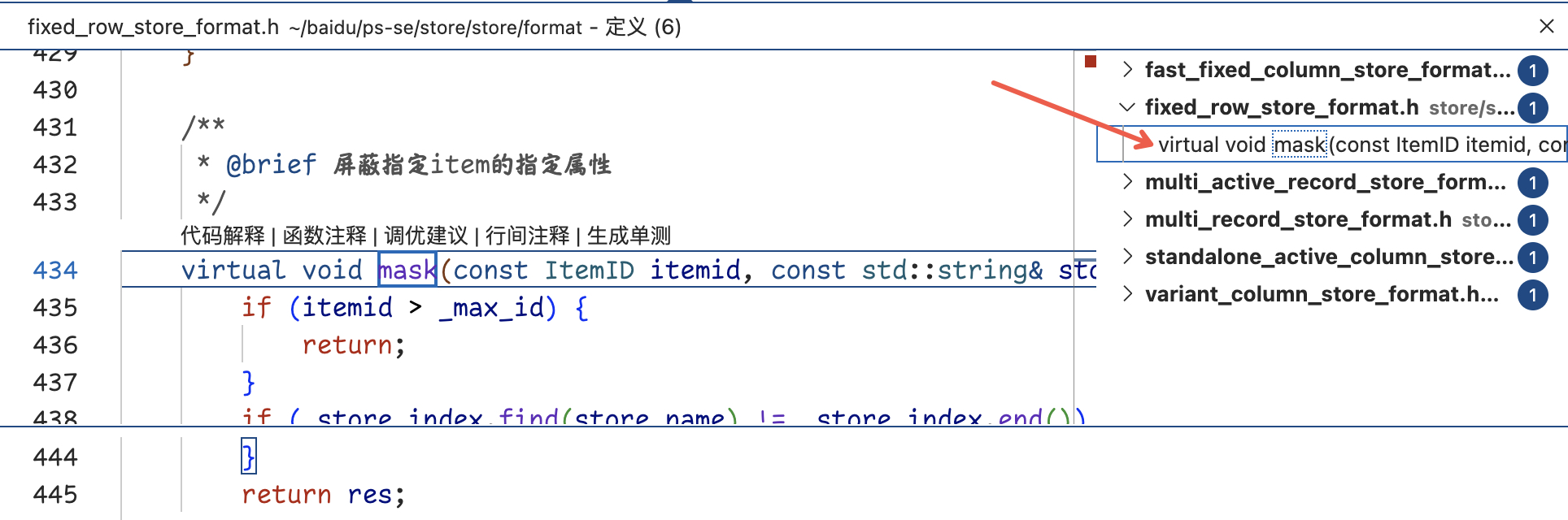
目录

vscode常用配置

设置

代码缩略窗

搜索minimap,找到“Editor: Minimap”选项,并勾选“Enabled”复选框。
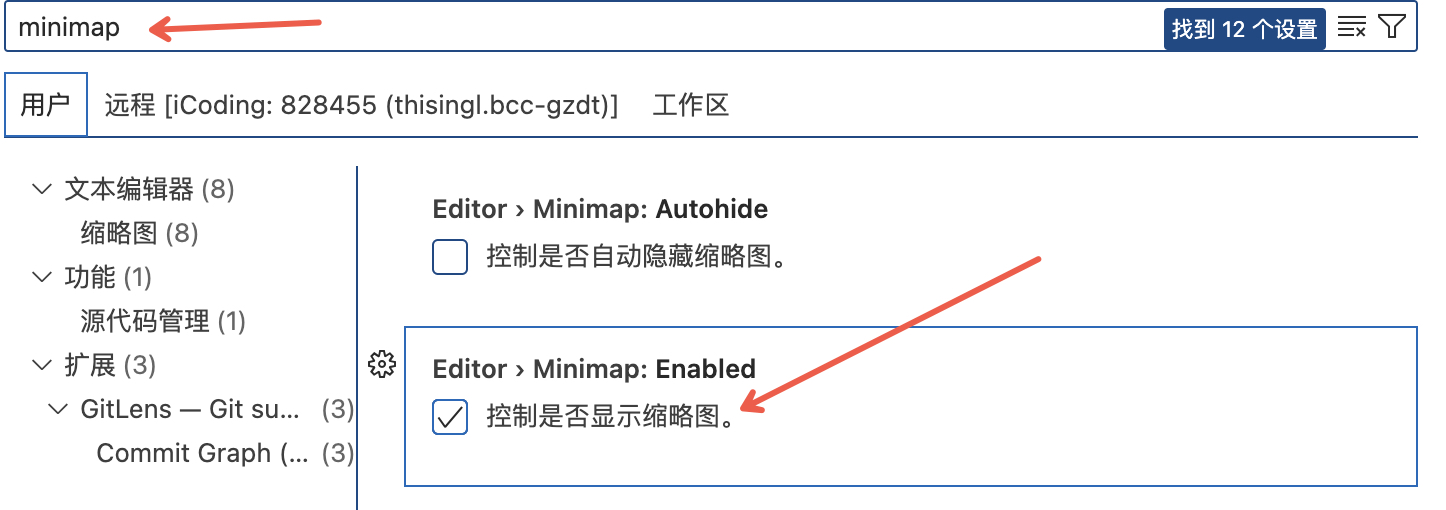
/vscode%E5%B8%B8%E7%94%A8%E9%85%8D%E7%BD%AE/images/image-20251210192552152.png
image-20251210192552152

在缩略图中只需要双击右边的文件,即可跳转到对应的位置:

/vscode%E5%B8%B8%E7%94%A8%E9%85%8D%E7%BD%AE/images/image-20251210193253900.png
image-20251210193253900

插件

GitLens

神!可以看到每行代码的提交人,只需要将鼠标放在每一行的提示文字上即可:
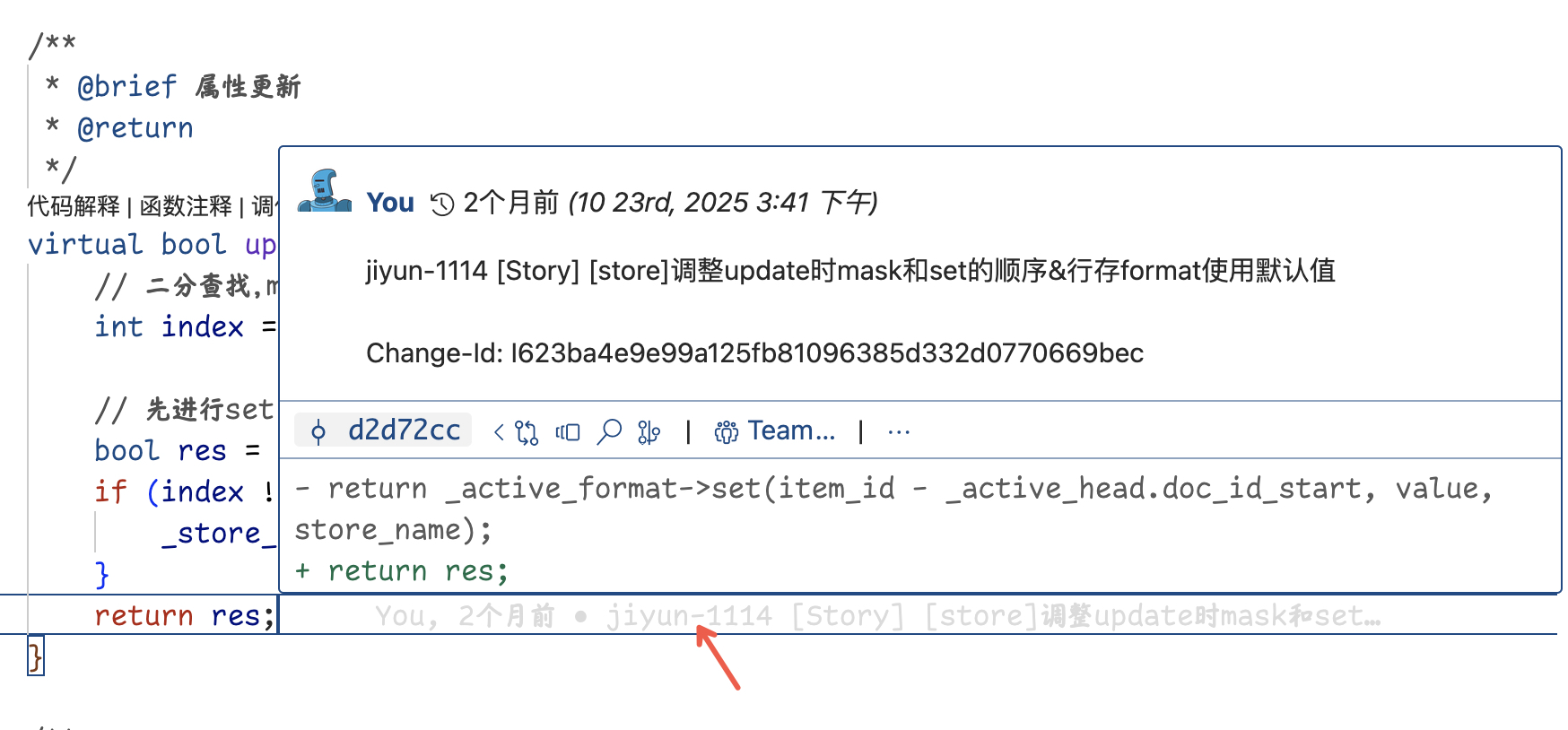
/vscode%E5%B8%B8%E7%94%A8%E9%85%8D%E7%BD%AE/images/image-20251210192810252.png
image-20251210192810252

Doxygen Documentation Generator

安装后就可以和 IDEA 一样,通过输入 /** 然后按下回车键,自动生成注释模板

生成注释模板(两种方式,任选其一):

  • 方式 1:把光标定位到函数上方,按下快捷键 Ctrl+Shift+D(Windows/Linux)/ Cmd+Shift+D(Mac),直接生成完整模板。
  • 方式 2(推荐):和 IDEA 一样,输入 /** 然后按下回车键,自动补全模板。

填充内容:IDE 会自动识别函数的参数、返回值,生成对应的 @param@return 标签,你只需要填写具体含义即可。

Material Icon Theme

很漂亮的文件格式

Dracula Theme Official

很喜欢的vscode主题,吸血鬼

Chinese (Simplified)

汉化包,yyds!

仿造 hlchunk.nvim 效果

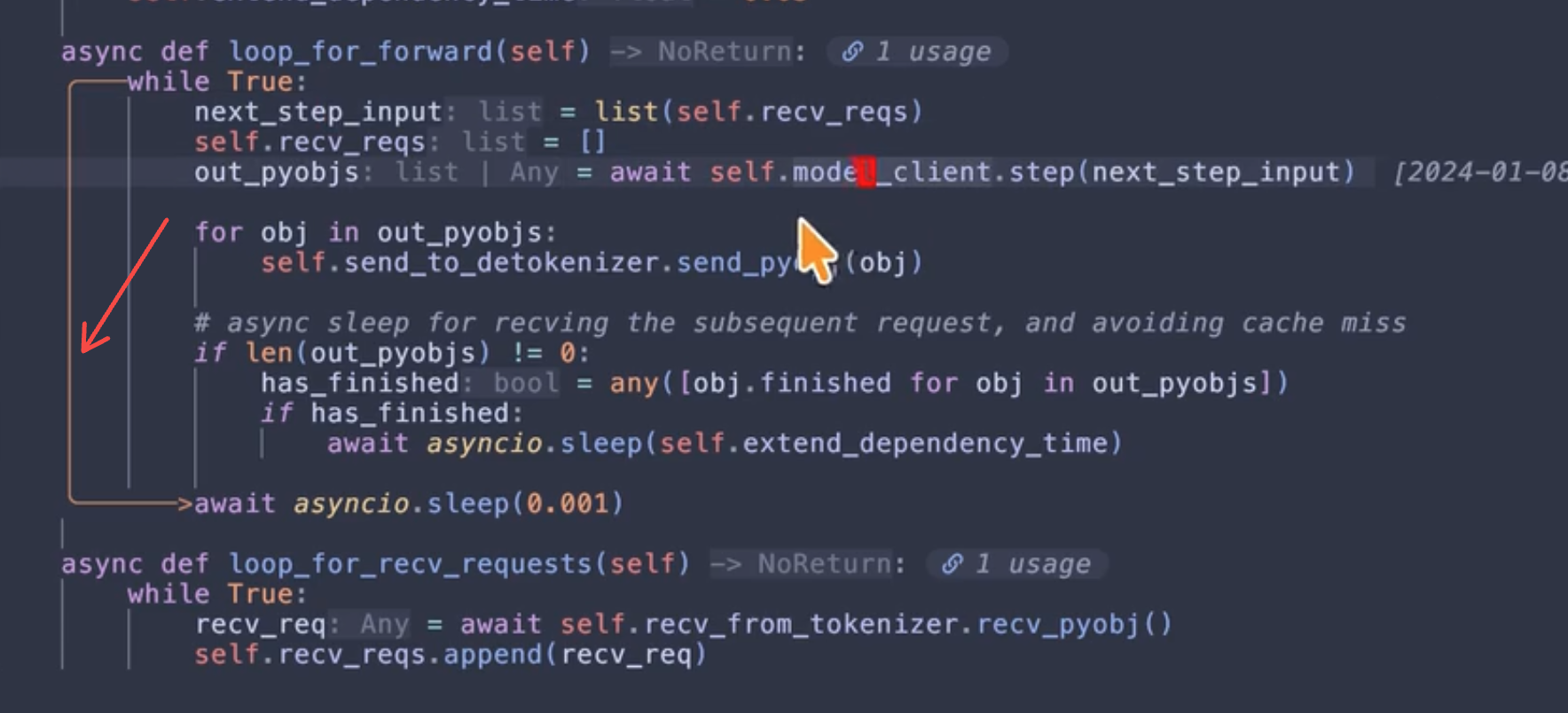
我很喜欢一个up的 Neovim 插件,可以漂亮的提示当前 scope 作用域 该博主的配置如下:

 1
 2
 3
 4
 5
 6
 7
 8
 9
10
11
12
13
14
15
16
17
18
19
20
21
22
23
24
25
26
27
28
29
30
31
32
33
34
35
36
37
38
39
40
41
42
43
44
45
46
47
48
49
50
51
52
53
54
55
"shellRaining/hlchunk.nvim",
    config = function()
      vim.api.nvim_create_autocmd({ "CursorMoved", "CursorMovedI" }, { pattern = "*", command = "EnableHL" })
      require("hlchunk").setup({
        chunk = {
          enable = true,
          use_treesitter = false,
          notify = true, -- notify if some situation(like disable chunk mod double time)
          exclude_filetypes = {
            aerial = true,
            dashboard = true,
          },
          support_filetypes = {
            "*.lua",
            "*.js",
          },
          chars = {
            horizontal_line = "─",
            vertical_line = "│",
            left_top = "╭",
            left_bottom = "╰",
            right_arrow = ">",
          },
          style = {
            { fg = "#CB8764" },
          },
        },
        indent = {
          enable = true, --
          -- chars = { "│", "¦", "┆", "┊" },
          chars = { "▏" },
          -- chars = { " ", " ", " ", " " },
          use_treesitter = false,
          style = {
            -- { fg = vim.fn.synIDattr(vim.fn.synIDtrans(vim.fn.hlID("Whitespace")), "fg", "gui") }
            { fg = "#51576e" }
          },
        },
        line_num = {
          enable = false,
          use_treesitter = true,
          style = "#806d9c",
        },
        blank = {
          enable = false,
          chars = {
            "․",
          },
          style = {
            vim.fn.synIDattr(vim.fn.synIDtrans(vim.fn.hlID("Whitespace")), "fg", "gui"),
          },
        },
      })
    end,
  },

效果如下图所示:

/vscode%E5%B8%B8%E7%94%A8%E9%85%8D%E7%BD%AE/images/image-202603101011.png
image-202603101011
但是很可惜,vscode插件无法在 gutter 中自定义绘制字符块,所以没办法实现:

1
2
3
4
5
6
7
chars = {
  horizontal_line = "─",
  vertical_line = "│",
  left_top = "╭",
  left_bottom = "╰",
  right_arrow = ">",
}

但是VSCode 自带 active indent guide,设置一下也能基本够用:

settings.json

1
2
3
4
5
{
  "editor.guides.indentation": true,
  "editor.guides.highlightActiveIndentation": true,
  "editor.guides.bracketPairs": "active"
}

以及彩色scope插件:Guides