设置
代码缩略窗
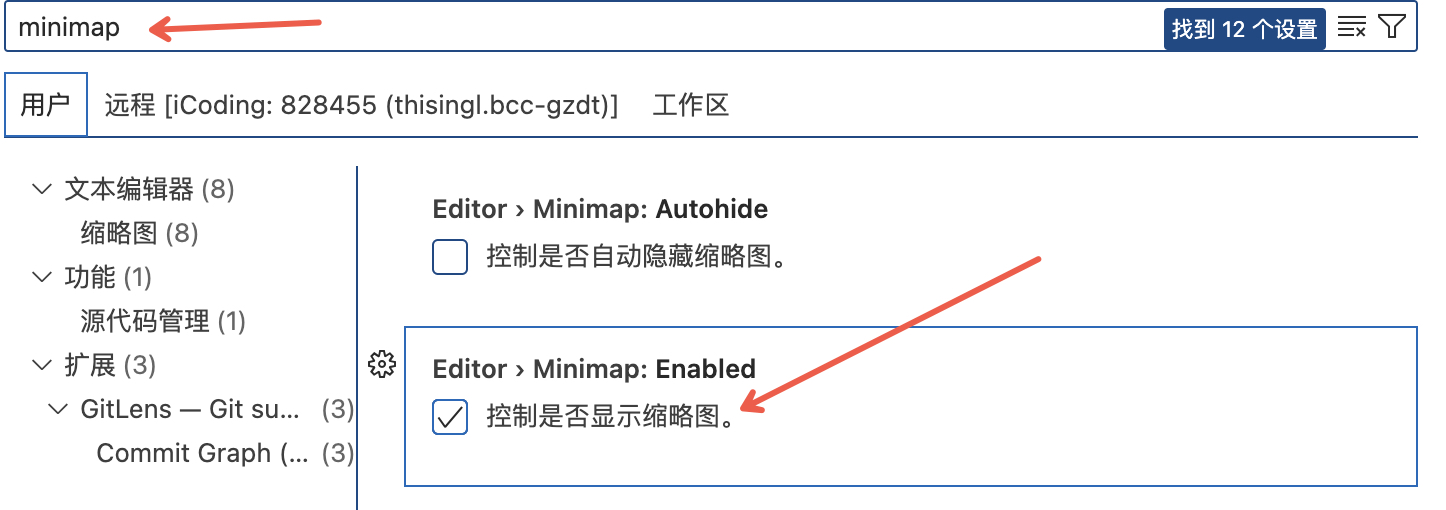
搜索minimap,找到“Editor: Minimap”选项,并勾选“Enabled”复选框。
 image-20251210192552152
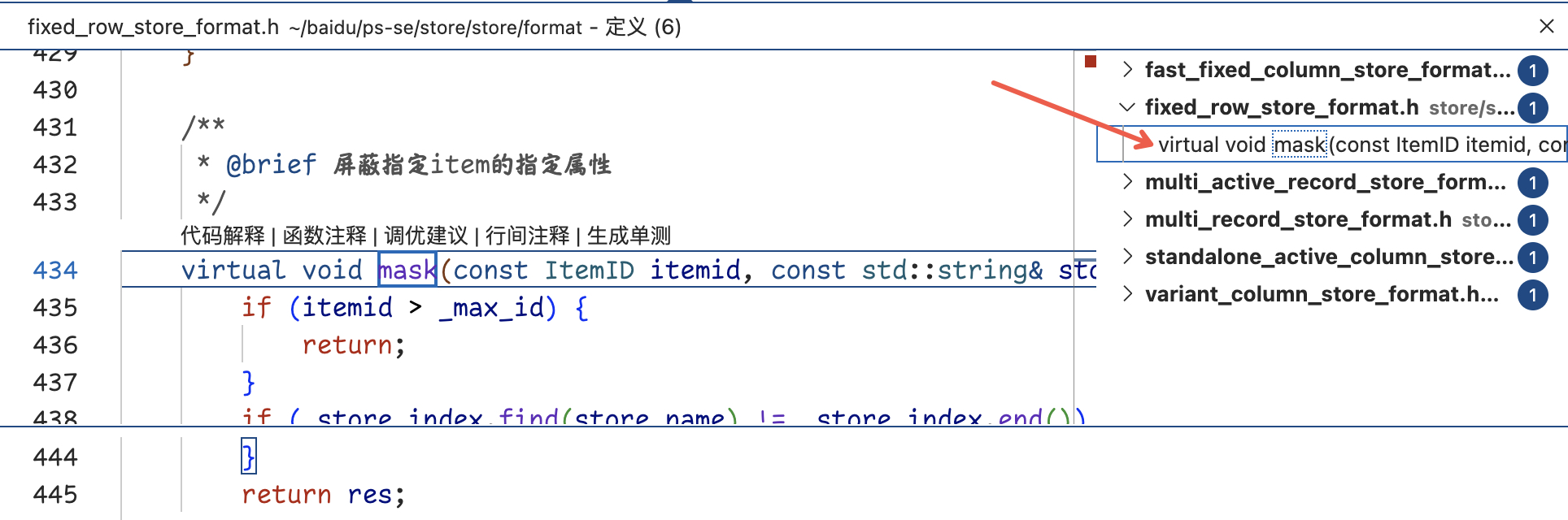
在缩略图中只需要双击右边的文件,即可跳转到对应的位置:
image-20251210193253900
插件
GitLens
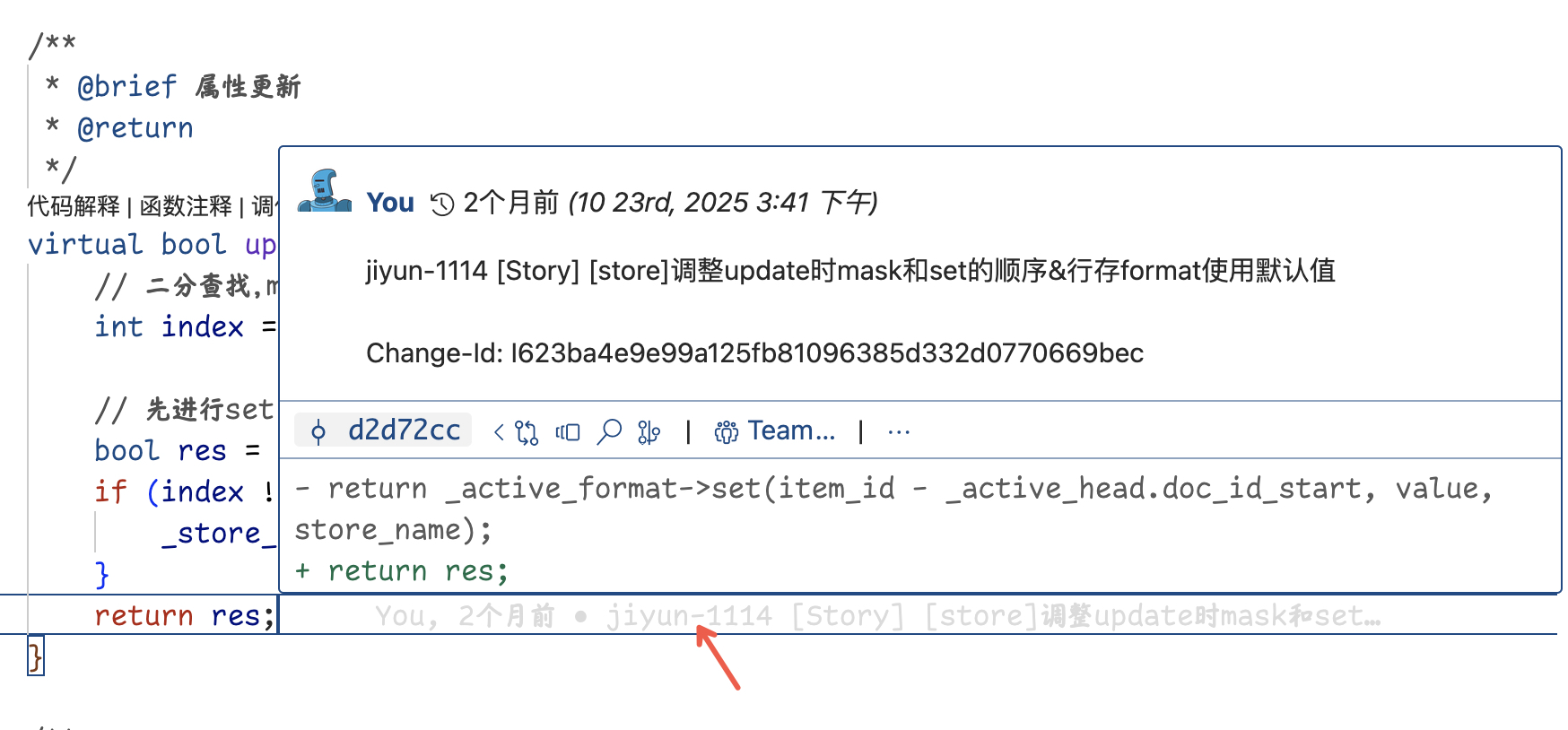
神!可以看到每行代码的提交人,只需要将鼠标放在每一行的提示文字上即可:
image-20251210192810252
Doxygen Documentation Generator
安装后就可以和 IDEA 一样,通过输入 /** 然后按下回车键,自动生成注释模板
生成注释模板(两种方式,任选其一):
- 方式 1:把光标定位到函数上方,按下快捷键
Ctrl+Shift+D(Windows/Linux)/ Cmd+Shift+D(Mac),直接生成完整模板。
- 方式 2(推荐):和 IDEA 一样,输入
/** 然后按下回车键,自动补全模板。
填充内容:IDE 会自动识别函数的参数、返回值,生成对应的 @param、@return 标签,你只需要填写具体含义即可。
Material Icon Theme
很漂亮的文件格式
Gruvbox Theme
很喜欢的vscode主题,来源于我在 iTerm2 中的 Gruvbox Dark 主题色,居然也有 vscode 版本
推荐 Gruvbox Dark Medium 色彩
Chinese (Simplified)
汉化包,yyds!
仿造 hlchunk.nvim 效果
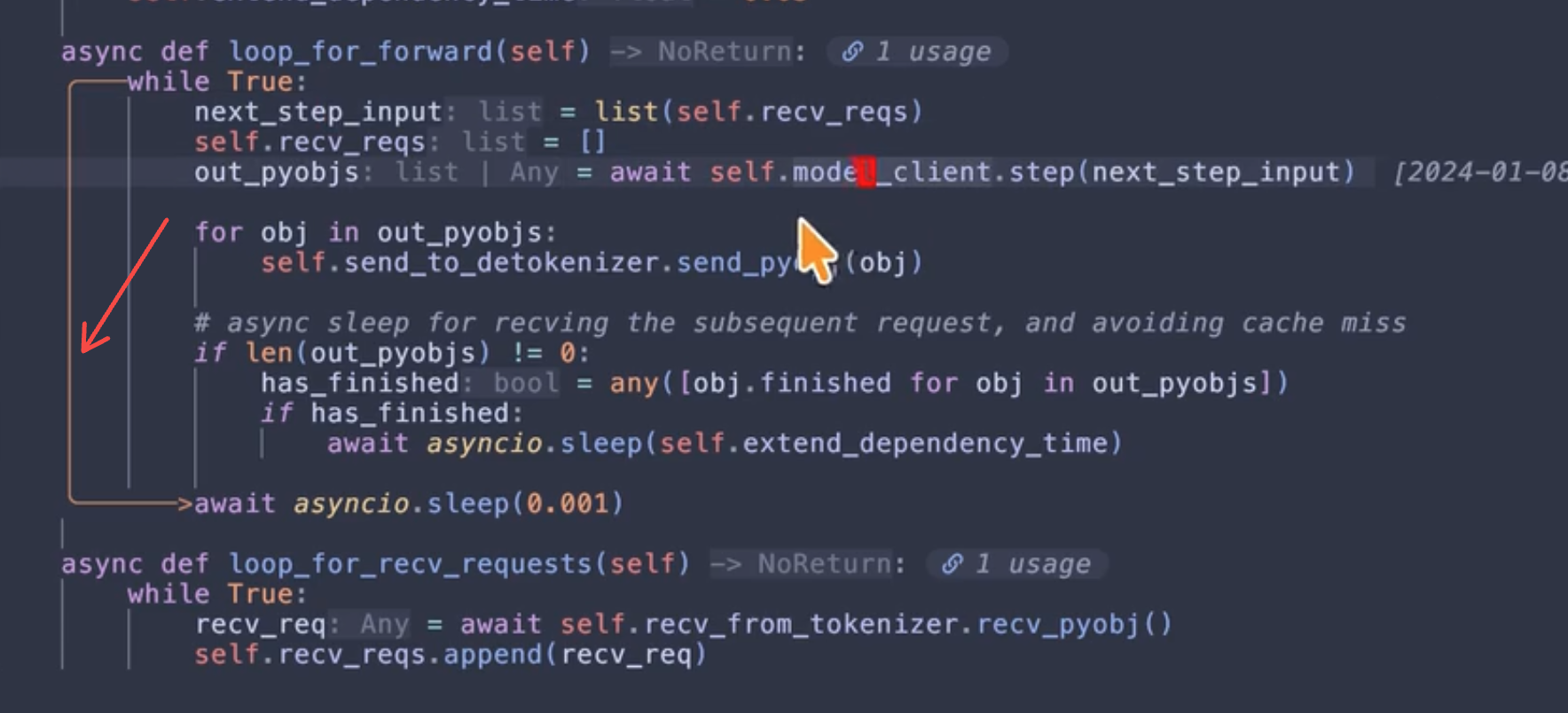
我很喜欢一个up的 Neovim 插件,可以漂亮的提示当前 scope 作用域
该博主的配置如下:
 1
 2
 3
 4
 5
 6
 7
 8
 9
10
11
12
13
14
15
16
17
18
19
20
21
22
23
24
25
26
27
28
29
30
31
32
33
34
35
36
37
38
39
40
41
42
43
44
45
46
47
48
49
50
51
52
53
54
55
|
"shellRaining/hlchunk.nvim",
    config = function()
      vim.api.nvim_create_autocmd({ "CursorMoved", "CursorMovedI" }, { pattern = "*", command = "EnableHL" })
      require("hlchunk").setup({
        chunk = {
          enable = true,
          use_treesitter = false,
          notify = true, -- notify if some situation(like disable chunk mod double time)
          exclude_filetypes = {
            aerial = true,
            dashboard = true,
          },
          support_filetypes = {
            "*.lua",
            "*.js",
          },
          chars = {
            horizontal_line = "─",
            vertical_line = "│",
            left_top = "╭",
            left_bottom = "╰",
            right_arrow = ">",
          },
          style = {
            { fg = "#CB8764" },
          },
        },
        indent = {
          enable = true, --
          -- chars = { "│", "¦", "┆", "┊" },
          chars = { "▏" },
          -- chars = { " ", " ", " ", " " },
          use_treesitter = false,
          style = {
            -- { fg = vim.fn.synIDattr(vim.fn.synIDtrans(vim.fn.hlID("Whitespace")), "fg", "gui") }
            { fg = "#51576e" }
          },
        },
        line_num = {
          enable = false,
          use_treesitter = true,
          style = "#806d9c",
        },
        blank = {
          enable = false,
          chars = {
            "․",
          },
          style = {
            vim.fn.synIDattr(vim.fn.synIDtrans(vim.fn.hlID("Whitespace")), "fg", "gui"),
          },
        },
      })
    end,
  },
|
效果如下图所示:
image-202603101011
但是很可惜,vscode插件无法在 gutter 中自定义绘制字符块,所以没办法实现:
1
2
3
4
5
6
7
|
chars = {
  horizontal_line = "─",
  vertical_line = "│",
  left_top = "╭",
  left_bottom = "╰",
  right_arrow = ">",
}
|
但是VSCode 自带 active indent guide,设置一下也能基本够用:
settings.json:
1
2
3
4
5
|
{
  "editor.guides.indentation": true,
  "editor.guides.highlightActiveIndentation": true,
  "editor.guides.bracketPairs": "active"
}
|
以及彩色scope插件:Guides
Markdown Preview Enhanced
Markdown 增强插件,可以实时预览和编辑 Markdown 文档。
Draw.io Integration
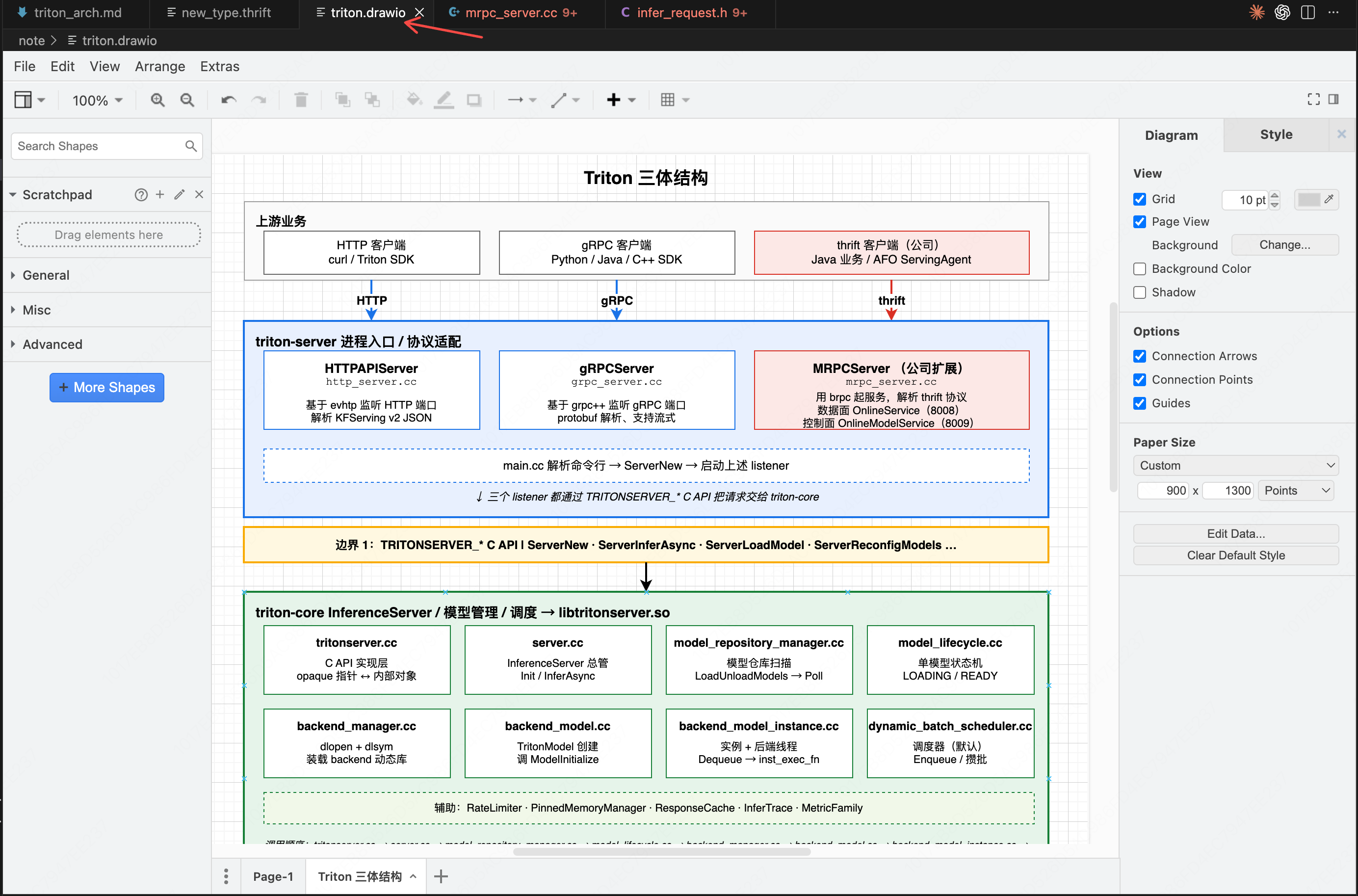
太无敌的插件了,以前都不知道 .drawio 文件可以做各种复杂的图,比如架构图,可以直接让 ai 画,画的比 mermaid 好看太多了
alt text
Draw.io Integration 默认跟随 VS Code 主题导致的——你 VS Code
是暗色,它就用暗色画布。有个专门的设置可以强制让它用白色画布,不影响你 VS Code 整体的护眼暗色主题。
改法:加一个设置项
打开 VS Code 设置(Cmd+,),搜 drawio Theme,把 Hediet › Vscode-drawio: Appearance 从 automatic
改成 atlas
alt text
 Thising